
Lead functions
Within the lead view there are many functions that enable you to manage your leads. Some present as buttons and others via links. This provides an overview of those functions. Where they have important roles, further information is available via the dedicated pages mentioned below.
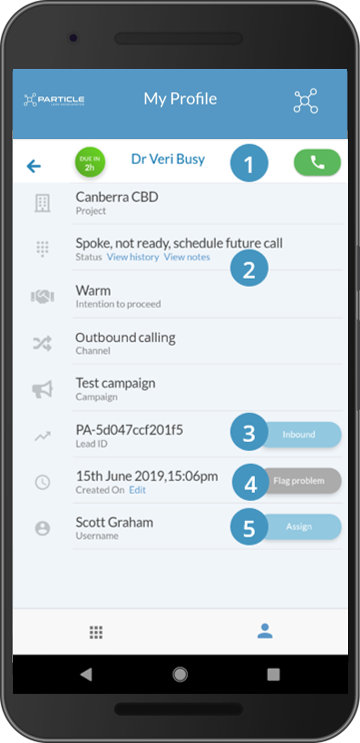
1. Call button: To dial your client, simply press on the call button. It’ll open your handset’s dial screen and load the client’s phone number. To call, click the dial icon again.
2. View history / view notes: To check on the history of your contact with this client, click on the history link. For a summary of the notes you’ve taken, the follow the notes link. For more information on this, then go to View History.
3. Inbound: If a client contacts you then select the Inbound button. This allows you to record the contact, the outcome and capture any notes. For more on this go to Inbound contact.
Tip: most prospects will contact you at some stage during the conversation. This “Inbound” function is a critical method of capturing the event and updating the record.
4. Flag problem: If you receive a lead that is clearly not a genuine enquiry, then you can reject the lead via this link. For more on this, go to Capture Outcomes.
5. Assign: If you receive a lead that is for a service or territory outside your scope or where you cannot respond in a timely manner, then you will need to reassign it. To reassign a lead, then click on this button. It will present you with a list of users with the same scope as you.